

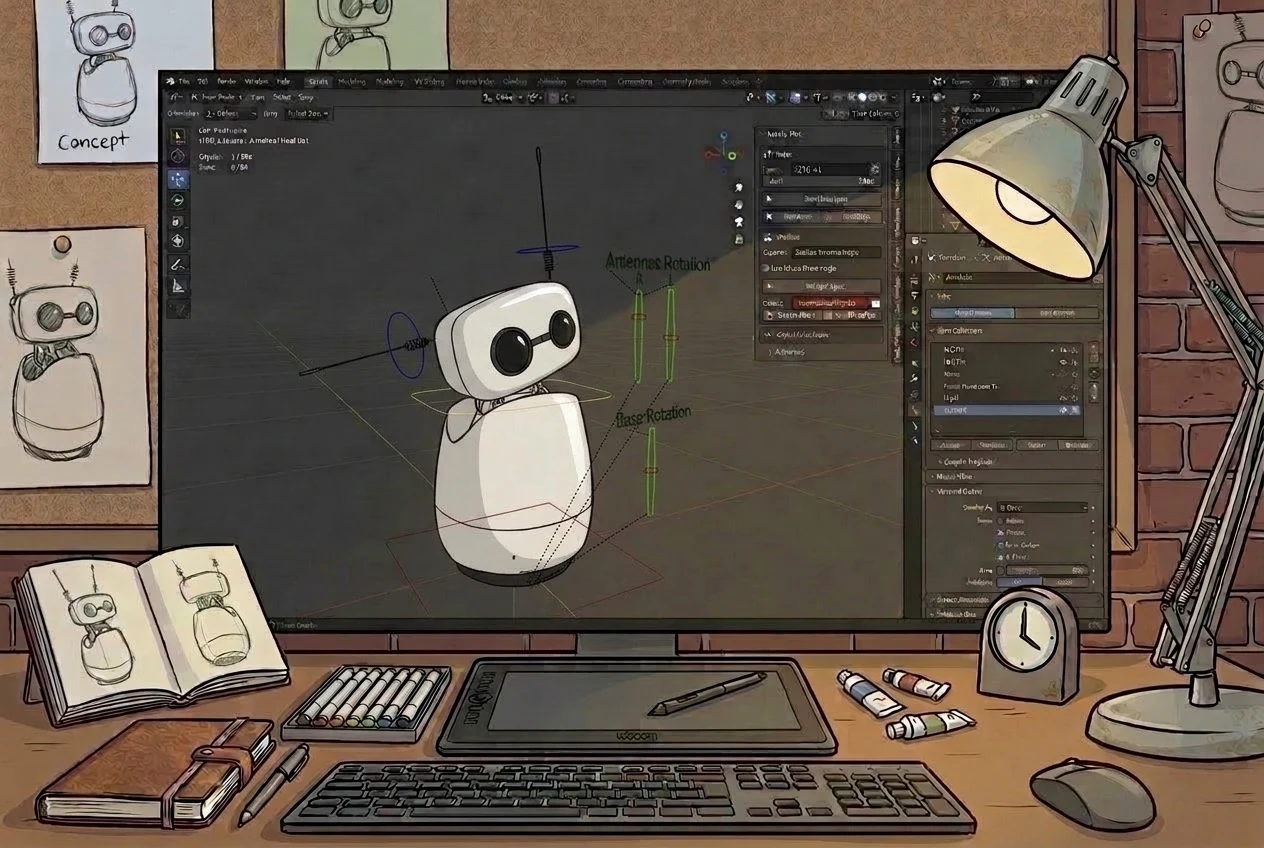


Making Reachy Mini feel alive is an animation problem, and its home so
far has been marionette,
by  Rémi Fabre: puppeteer the robot by
hand, record, share - unbeatable for capturing a gesture in seconds. What
a recording can't give you is what comes after: adjusting a timing,
cleaning a curve, making a move loop. Animators solved all of that decades
ago - the tools just weren't pointed at this robot. So we built
Rémi Fabre: puppeteer the robot by
hand, record, share - unbeatable for capturing a gesture in seconds. What
a recording can't give you is what comes after: adjusting a timing,
cleaning a curve, making a move loop. Animators solved all of that decades
ago - the tools just weren't pointed at this robot. So we built
reachy_mini_link, a Blender add-on that connects the rig in your
viewport to a real (or simulated) robot and puts thirty years of animation
tooling behind its moves.
By the end of this tutorial you will have:
- posed the robot live from the Blender viewport;
- keyframed a move and played it on the robot, with sound;
- published it to a Hugging Face dataset, in the same format Marionette reads;
- remixed a community move as clean, editable keyframes;
- closed it into a seamless loop, in one click.
What you'll need
- Blender 4.2 or newer - first time in Blender? Blender Guru's beginner series and the official Blender Fundamentals playlist cover all the basics this tutorial assumes.
- A Reachy Mini, set up via getting started - or the daemon's simulator, which behaves identically.
- The add-on:
reachy_mini_link.zipfrom the latest release. The rigged scene ships inside it; there is nothing to pip install.
Install and connect
Edit > Preferences > Add-ons→Install from Disk→reachy_mini_link.zip, then enable Reachy Mini Link.- Press
Nin the viewport, open the Reachy Mini tab, click Load Reachy Mini Rig. The bundled scene loads without touching whatever you were working on. - Keep the default
127.0.0.1for a Lite on USB; type the robot's IP (from the mobile app) for a wireless one - or click the magnifier button, which probes both and fills the field with whichever answers.
Drive it live
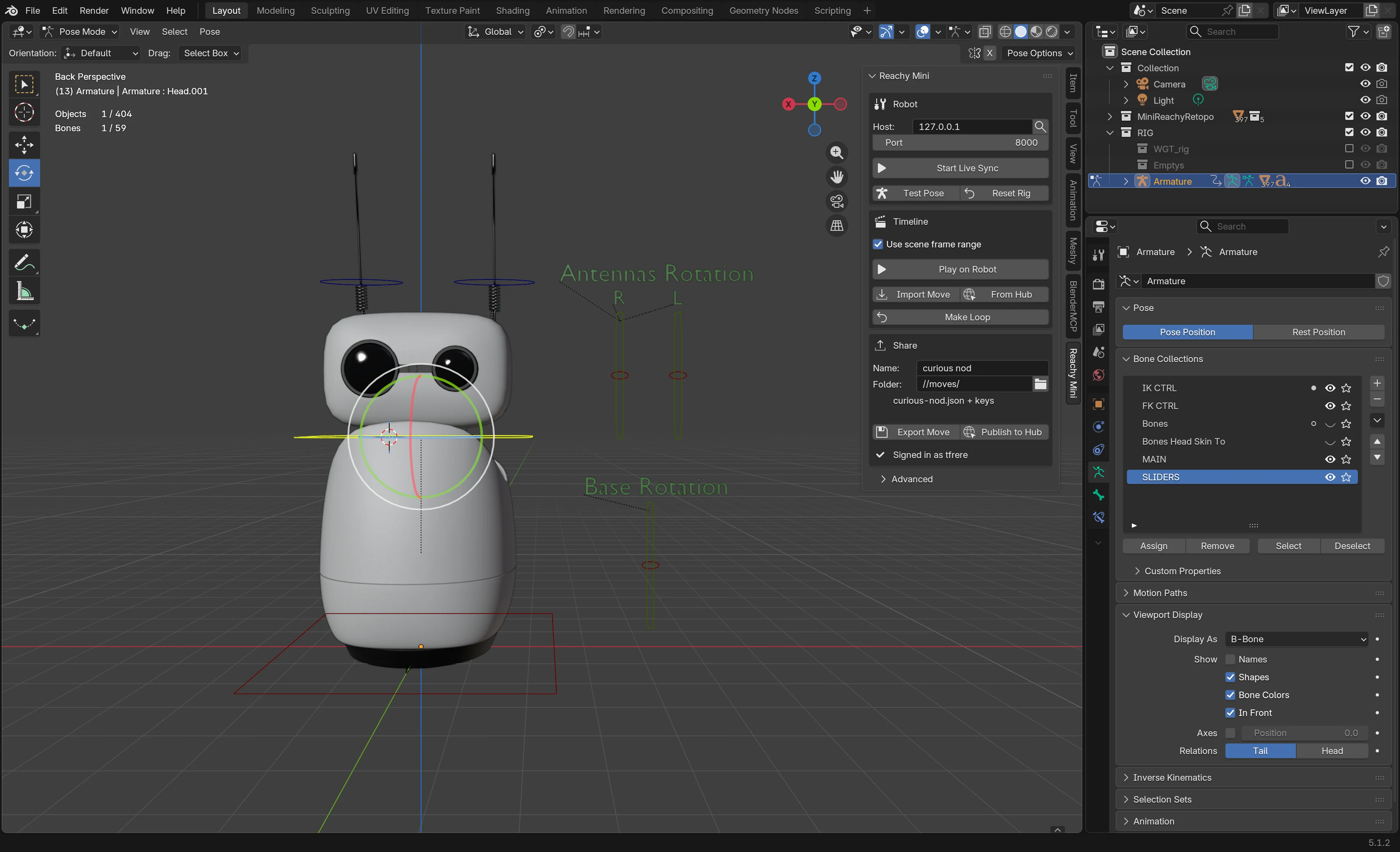
Click Start Live Sync, grab a control, and watch the desk: the add-on streams the rig at 50 Hz and the robot mirrors your viewport. The whole control surface is a handful of widgets - the yellow ring is the 6-DoF head, the blue circles the antennas, the sliders antenna sweep and body yaw.
Two caveats: the head's usable travel is small (roughly ±23 mm vertically), and past it the robot saturates silently while your viewport keeps going; and only one client should stream at a time. Reset Rig returns everything to neutral, undoably.
Keyframe and play
Stop the sync and animate the same controls you just dragged, the normal Blender way - key the head ring, the antenna sliders, the body yaw, and shape the curves however you like. Nothing robot-specific to learn: if you can animate a bouncing ball, you can animate this robot. One tip at robot scale: a few millimetres of head travel already read as a gesture.
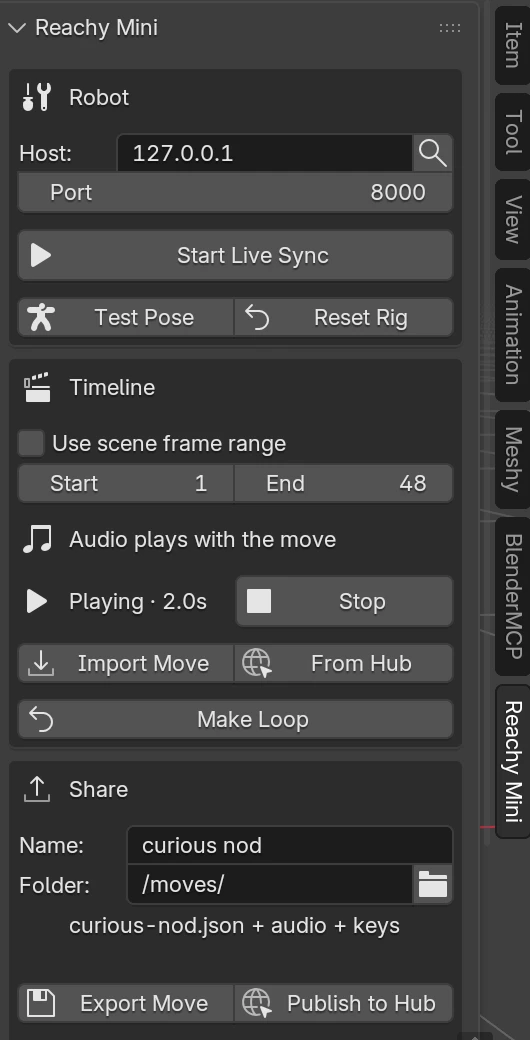
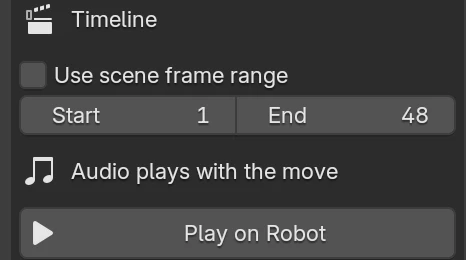
Click Play on Robot. The add-on bakes the timeline (one sample per frame, rig fully evaluated), uploads it, and the daemon plays it back on its own 100 Hz clock - no network jitter, and playback survives Blender closing. The panel tracks it in the background: Sending, Playing with the duration, and a Stop button.
Add sound
Drop a sound (OGG or WAV) into Blender's Video Sequencer where it fits the motion. Scrubbing plays it, so slide the strip until sound and gesture feel like one thing - on this robot the audio is half the performance. When a strip exists the panel says so, and every path carries it: Play on Robot plays it on the robot's speaker in lockstep, Export Move and Publish to Hub ship it alongside the motion. Mute the strip to go back to motion-only.
Share it
Type a name into Name (in the Share section) and click Publish to
Hub. The move lands in a dataset under your namespace
(<you>/reachy-mini-moves by default, created on first use) as three
files:
data/<name>.json- the baked move, ready to play anywhere.- its audio sidecar, if the scene has one.
sources/<name>.keys.json- your exact keyframes and handles, so importing the move later gives back the curves you authored, not a reconstruction.
Publishing the same name again overwrites the same files; Export Move
writes the same three files into a local folder instead. Sign-in resolves
itself from HF_TOKEN, the hf CLI token, or a token in the add-on
preferences - the panel shows which account it found.
One format, every tool
Published datasets follow Marionette's community conventions, so your Blender moves show up in its browser next to everyone's hand-puppeted recordings. Record by puppeteering, refine by keyframing, share once.
Remix any move
You don't have to start from a blank timeline. From Hub lists every
public community move - Marionette recordings, the official emotion and
dance libraries, moves published from Blender - as one folder per
dataset. Import Selected turns one into a normal, hand-editable
animation: the raw capture is smoothed and reduced to keyframes placed
where the motion actually turns, where an animator would have put them -
a 12-second recording lands around thirty keys per channel instead of
six hundred samples. Moves published from Blender skip the
reconstruction entirely: their
.keys.json sidecar brings back your exact keys and handles. Import
Move does the same for a local file.
A good first target: this tutorial's move is published at
tfrere/reachy-mini-moves -
open From Hub, find curious-nod under that dataset, and remix it.
Make it loop
Recorded moves almost never end where they started, so repeating them pops at the seam - notoriously hard to fix while puppeteering, since you would have to land nine degrees of freedom on the start pose at the right speed. In keyframe land it is one click: Make Loop appends a return to the starting pose, sized automatically from how far away the move ends, with matching velocity at both ends. That's the video at the top of this page: an imported community move, closed in one click, repeating with no visible seam.
TL;DR
- Capture in Marionette, craft in Blender. Puppeteering gets the gesture in seconds; keyframes give you what a recording can't - timing, clean curves, seamless loops.
- The robot is a normal Blender rig. If you can animate a bouncing ball, you can animate Reachy Mini - and the daemon plays your timeline on its own 100 Hz clock, sound in lockstep.
- One format, shared once. Publish to the Hub and your move sits next to the hand-puppeted recordings and the official emotion library, ready for anyone to remix - keyframes included.
Now load the rig, make the robot on your desk do something nobody has seen before, and publish it so the rest of us can remix it.